Learn / Lesson 3
How to write text messages in a screenplay
There are three ways to put a text message on the page: in an action line, as an insert, or as a conversation with (TEXT) cues. Here is one scene that uses all three, each where it fits, and the one question that tells you which to use.
Chapters
- 0:00Three ways to write a text
- 0:171. The action line
- 0:332. An insert
- 0:513. A text conversation
- 1:10Texts in Scenarist
- 1:26Three rules
- 1:45Which one to use
One scene, three ways
In the last lesson, the caller phoned Ruth on the air. Later the same night, he texts. There’s no single official format for a text message, but three ways cover almost every case, and which one you use comes down to one question: how much does the audience need to read?
The scene is called Seen. Ruth has just come off the air and is sitting in her car in the station’s garage. It uses all three:
- The action line, when the gist is enough.
- An insert, when every word matters.
- A text conversation, when there’s a back-and-forth.
1. The action line
When the gist is enough, the text goes right into the description, like anything else that happens in the scene. Say who it’s from, then put the message in quotes, exactly as it was typed.
Dev appears here for the first time, so his name is in capitals, as with any character’s first appearance in the action.
Seen · The action line
INT. RUTH'S CAR - NIGHT
The station's parking garage, empty at four a.m. Ruth drops into the driver's seat.
Her phone buzzes. A text from her producer, DEV: "Great show. Go home."
She starts the engine. The phone buzzes again.
One line, and the scene keeps moving. It’s the lightest of the three, so it suits a text that’s part of the action rather than a moment of its own.
2. An insert
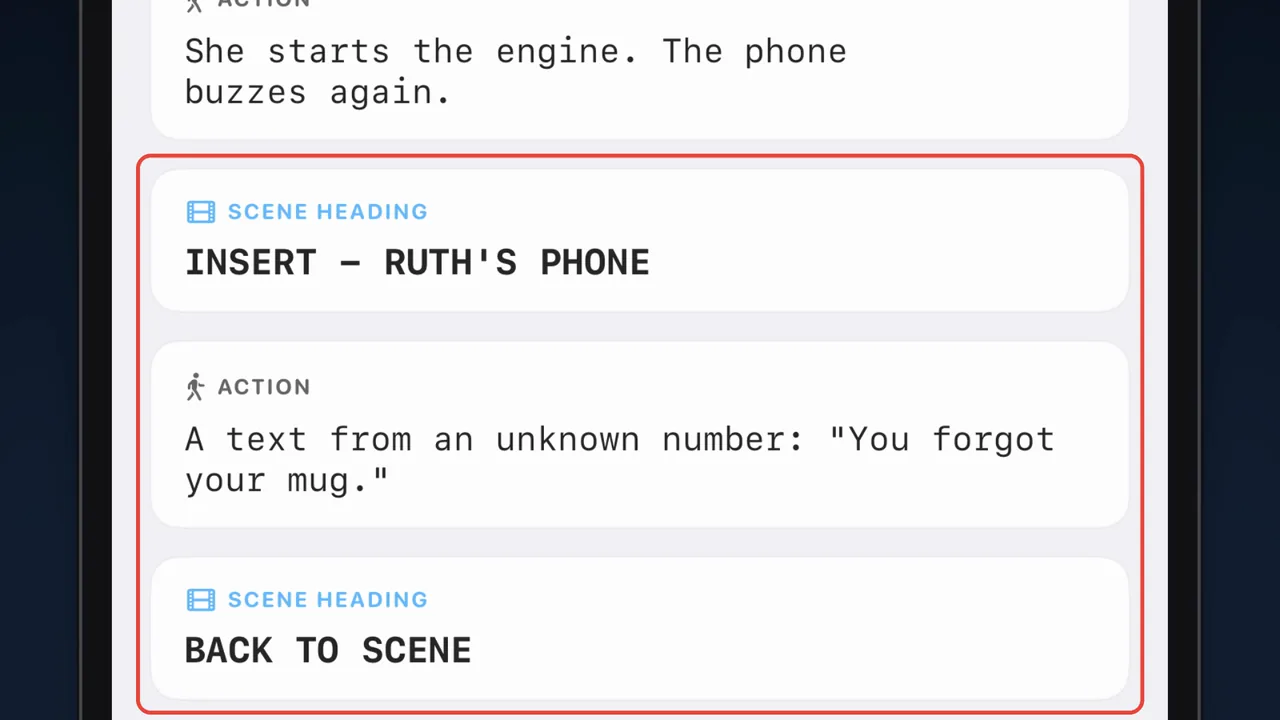
When every word matters, give the phone its own shot. Write INSERT and whose phone as a scene heading, then the message, then BACK TO SCENE to return to where we were.
Seen · An insert
INSERT - RUTH'S PHONE
A text from an unknown number: "You forgot your mug."
BACK TO SCENE
Ruth looks at the passenger seat. Her chipped mug sits there. She left it on her desk.
An insert stops the read the way a close-up stops the film, so save it for the text that turns the scene. Here it’s the moment Ruth realises the caller has been in her car.
3. A text conversation
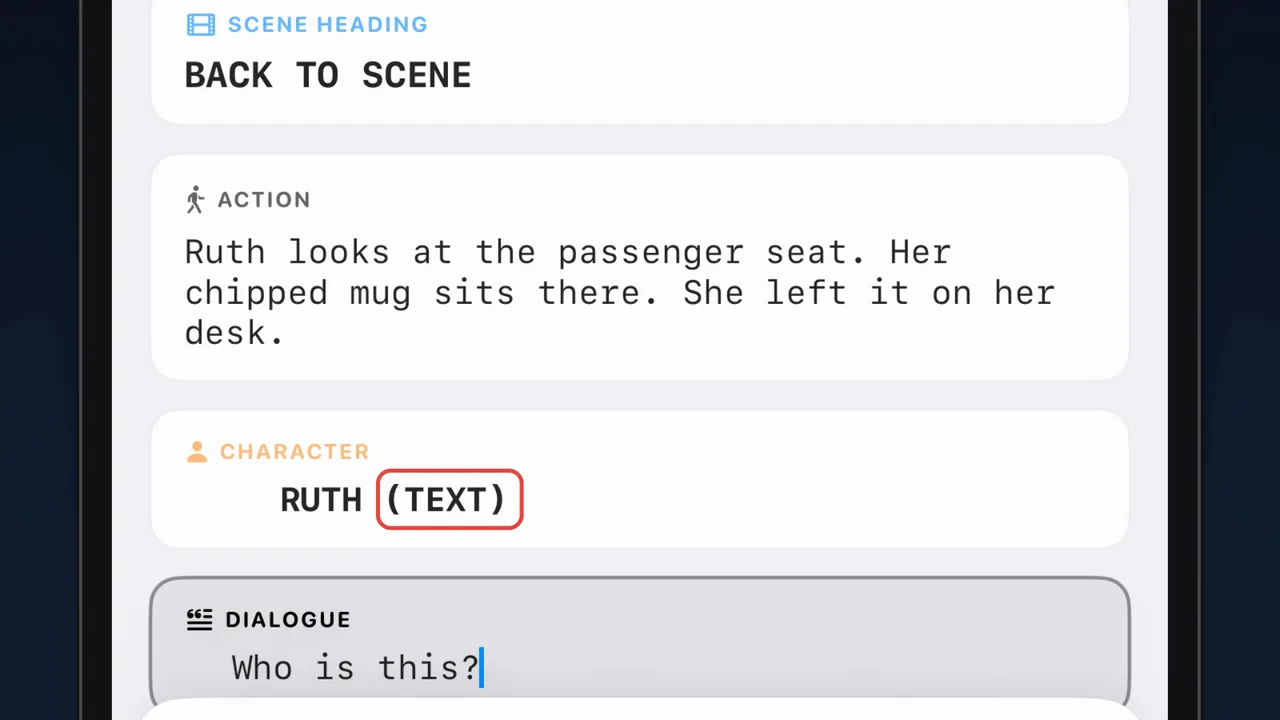
When there’s a back-and-forth, write each text like dialogue, with (TEXT) after the name, so no one reads it as speech. Action between the messages gives us Ruth’s face, and the three dots.
Seen · A text conversation
RUTH (TEXT)
Who is this?
CALLER (TEXT)
Your 3 a.m. caller.
RUTH (TEXT)
How did you get this number?
Three dots. They stop. They start again.
CALLER (TEXT)
Check the back seat.
She doesn't turn around. Her eyes go to the rearview mirror.
The back seat is empty.
The phone buzzes.
CALLER (TEXT)
Made you look.
FADE OUT.
If we see both of them typing, in two places, intercut between them, just like a phone call.
Not every guide uses the cue. Final Draft’s blog keeps texts out of the dialogue column altogether, with a line like TEXT MESSAGE READS: in the action; Script Magazine’s Dr. Format accepts a (TEXT) cue for a conversation. Both read clearly. Pick one and keep it for the whole script.
Texts in Scenarist
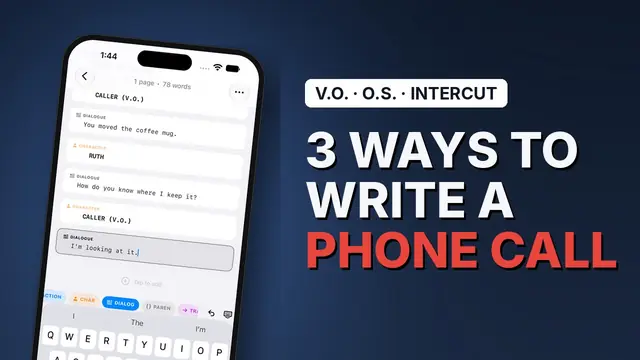
In Scenarist the insert line is a scene heading. Tap the SCENE chip and type it in lowercase; Return sets it in capitals. BACK TO SCENE works the same way.
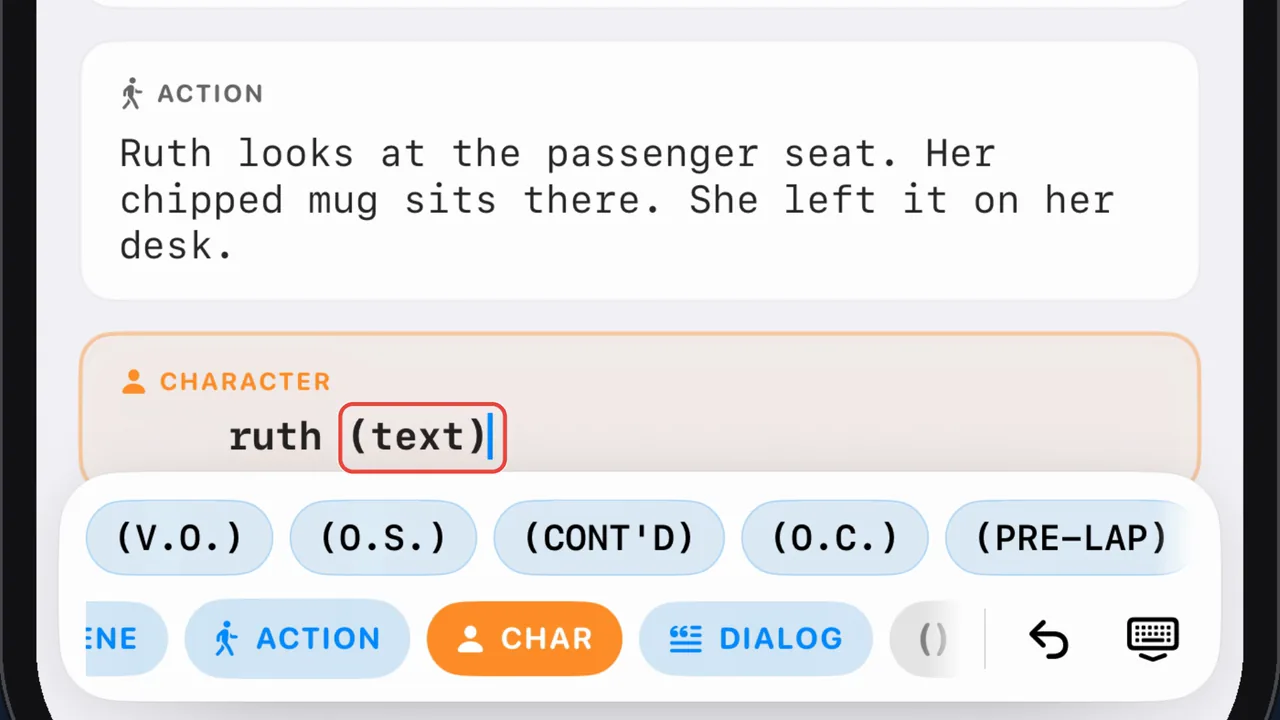
For a text, type (TEXT) after the name, and Return takes you to the message. The next time that character texts, the name comes back in the suggestions with (TEXT) already on it.
Three rules for every text
- Keep it exactly as typed. The abbreviations, the typos, the emoji: how someone texts is part of who they are.
- Leave the screen design to the edit. Bubbles, fonts and where the message appears on screen are decided in post-production, so the page only needs the words.
- Be consistent. The same kind of text, written the same way, every time.
Which one to use
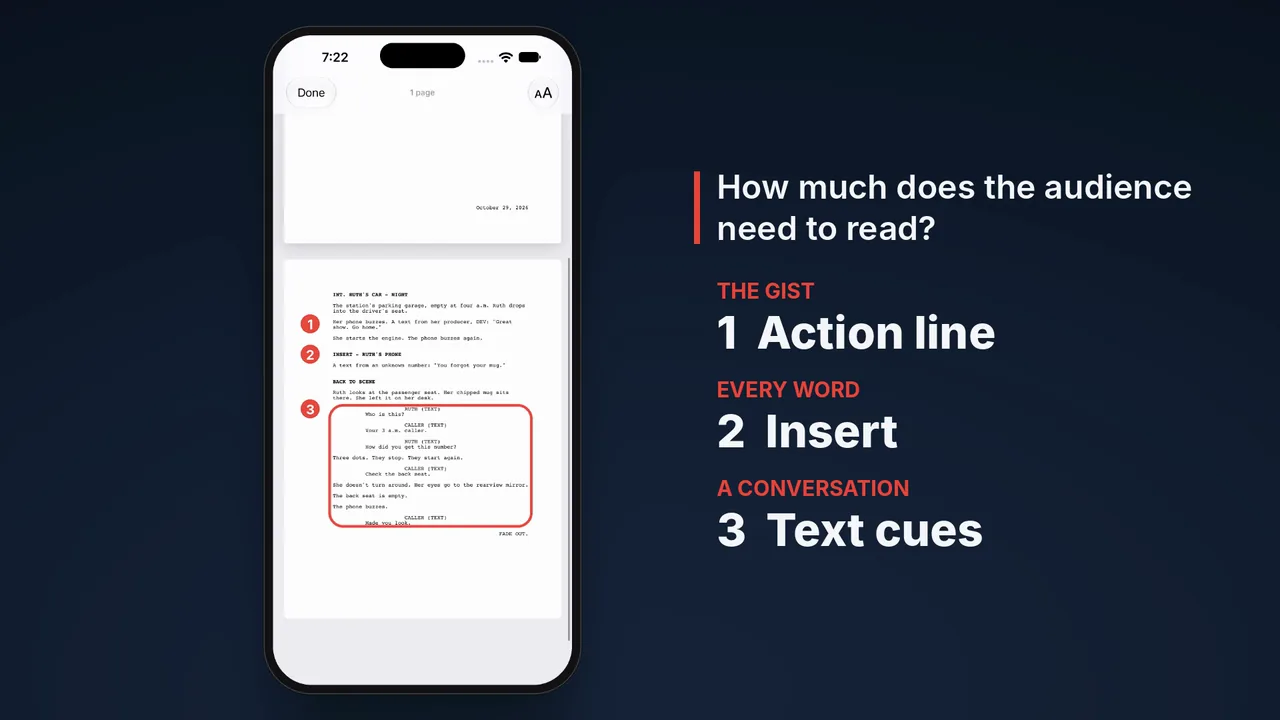
On the page, the scene reads in a minute: one text in the action, one insert, one conversation. So before you write a text, ask how much the audience needs to read.
| The audience needs | Write the text as |
|---|---|
| The gist | An action line |
| Every word | An insert |
| A back-and-forth | Text cues |
Next: YouTube scripts
The next lesson leaves the screenplay for a different page: how to write a YouTube script people watch to the end. New lessons go up first on YouTube.
Related guides
The seven screenplay elements
Scene heading to shot, and what each part of the page is for.
What is Fountain?
The plain-text screenplay format, and why it lasts.
Best iPhone screenwriting apps in 2026
Every app you can actually write a draft on, compared.
Write your own scene
Scenarist sets scene headings, character extensions and transitions as you type, on iPhone, iPad and Mac. Free to start, no account.
Get Scenarist